This was not a slide that refused to move. It was a control-list problem: two of the Brinkley's slide-outs were absent from the Lippert OneControl app. That distinction matters. A missing button in the app points in a different direction than a button that is present but produces no motion.
The wall-mounted Brinkley Smart-Command panel still provided a useful clue. Its face had three clearly labeled slide controls, so the coach was built and configured for three slide rooms. The app was not presenting the same complete device list.
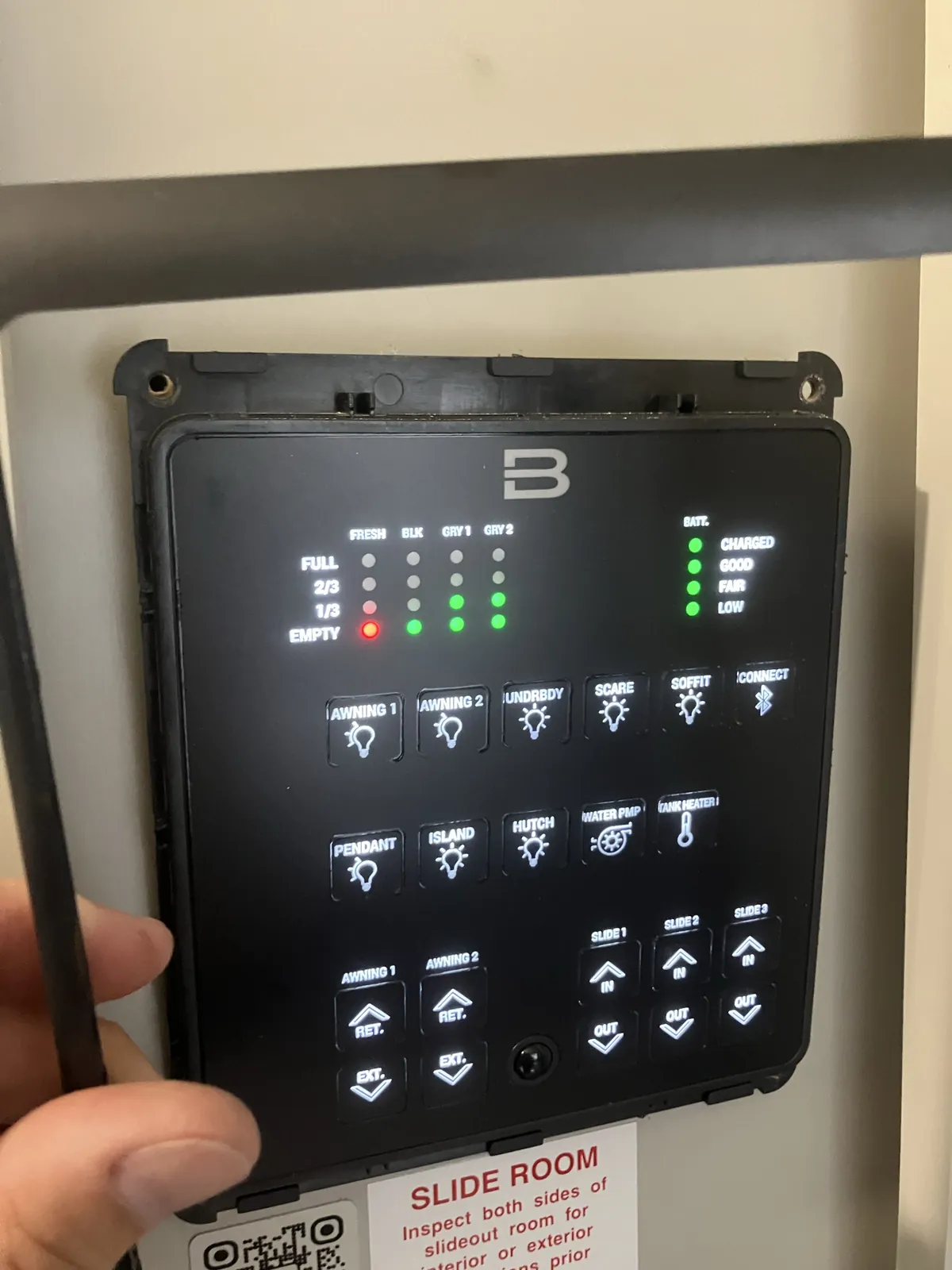
Before touching the panel, confirm the exact symptom
Do not use this reset for every slide-out complaint. First separate an app-display issue from a mechanical or electrical slide failure.
| What you observe | Where to focus first |
|---|---|
| Slide buttons are missing only in the phone app | Phone connection, app session and the device list reported by OneControl |
| The app shows the slide, but pressing it does nothing | Interlocks, 12-volt supply, controller, wiring and the slide mechanism |
| The physical panel and app both lost the same devices | Panel configuration, CAN-bus connection, controller communication or power |
| One side of the room moves or the room twists | Release the control immediately and diagnose the slide mechanism |
If a slide is crooked, jammed, making destructive noises or partly unsupported, stop. Resetting a display will not correct a mechanical failure. Use the RV slide-out no-movement checks or the system-specific guide instead.
Try the no-tools checks first
- Park securely, keep everyone clear of the slide rooms and confirm no one is operating the wall panel.
- Make sure the phone is connected to the correct RV in OneControl. A saved connection to another coach can produce the wrong device list.
- Close the OneControl app completely, reopen it and reconnect while standing near the RV.
- Confirm the coach has stable 12-volt power. Low or interrupted voltage can cause electronic controls to restart or communicate poorly.
- Compare the app with the physical monitor panel. Record exactly which devices are missing before changing anything.
If those checks restore the list, there is no reason to remove the panel. If the same two slides remain absent while the physical panel still identifies them, the monitor panel and its network connection become more relevant.
The repair: expose the Premium Monitor Panel
The decorative face was removed and the panel was pulled forward only far enough to reach the back. Work gently. The panel is connected by power and data harnesses, and pulling it out by the wires can turn a simple reset into an intermittent connection.
- Photograph the connectors before unplugging or moving anything.
- Support the panel instead of letting it hang from the harness.
- Do not probe the circuit board with a metal tool while it is powered.
- Do not press an unidentified button on a separate slide controller.
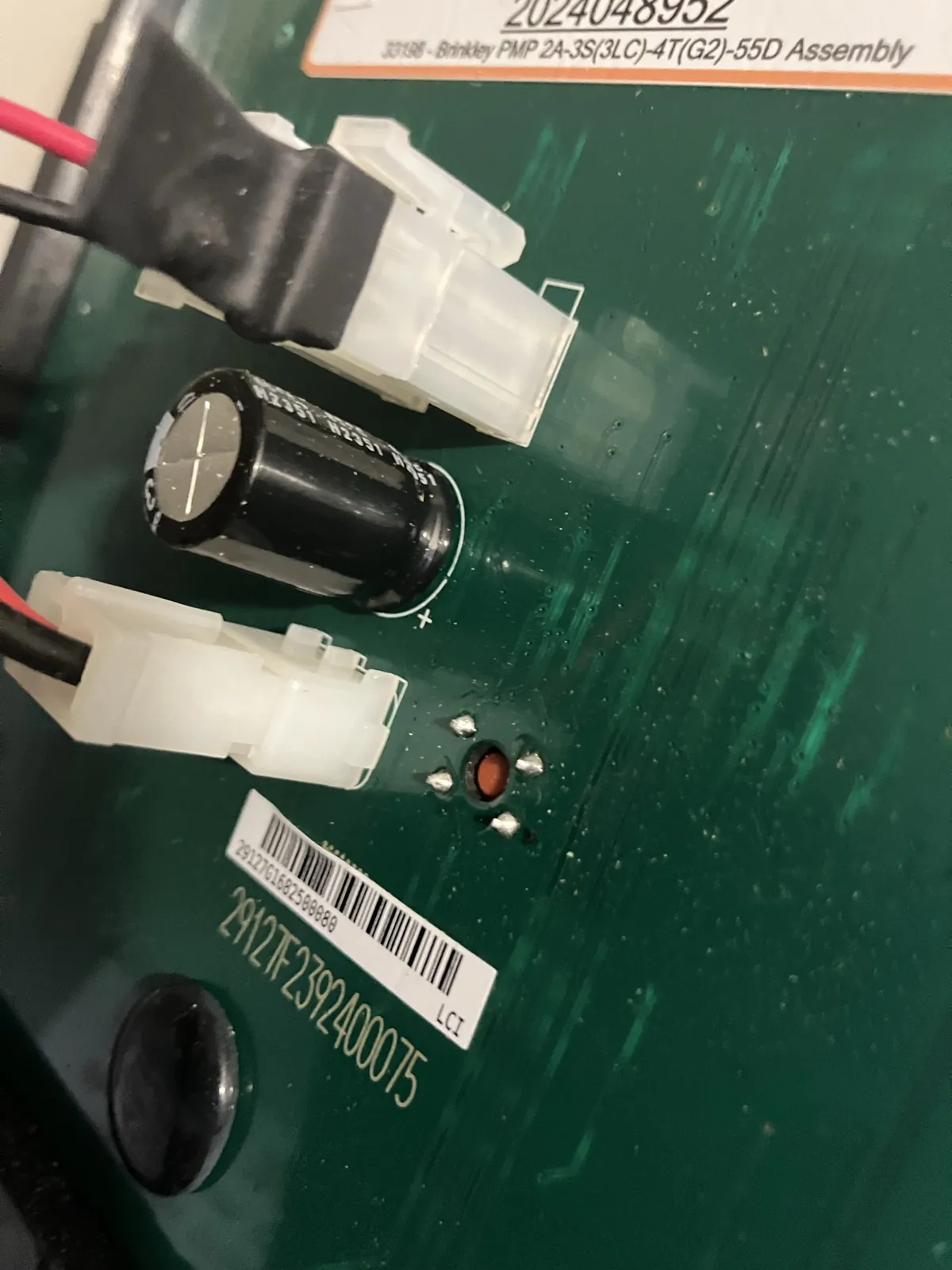
Hold the red button until the front LEDs change
In this repair, the recessed red button was held for about 10 to 15 seconds. The front of the panel illuminated differently, indicating that the panel had entered or completed its programming restart. Once the panel returned to normal and the phone reconnected, the OneControl app again showed all three slides.
After the reset, close and reopen the app if it does not refresh by itself. Verify the slide names and directions before operating anything. Keep the slide path clear and use a short controlled command first.
What this successful reset tells us
Two slide motors did not fail at the same time. The successful reset points to the control layer: the app was receiving an incomplete device configuration, or the monitor panel needed to republish that configuration on the OneControl network.
It does not prove why the list became incomplete. A prior power interruption, low voltage, a connector disturbance, an app session problem or a temporary communication fault could produce similar symptoms. If the controls disappear again, document battery voltage, recent electrical work and whether the physical panel also loses devices. A repeating problem deserves diagnosis rather than repeated resets.
Do not confuse three different resets
- Phone/app restart: Refreshes the mobile app and its connection without changing the RV hardware.
- Premium Monitor Panel programming reset: The rear red button shown here relates to the monitor panel's configuration.
- Slide-controller reset or synchronization: A separate procedure for a specific Schwintek, SlimRack, SureSlide or other slide controller. It may affect motor timing or travel setup.
Pressing a slide controller's mode button because a control is missing from the app can create a second problem. Identify the slide mechanism and controller before following any motor-sync, override or stop-learning procedure.
If the missing slide controls do not return
- Verify the phone is paired or connected to the correct coach and that OneControl has permission to use the required Bluetooth or local-network connection.
- Confirm the physical panel still shows the expected devices and responds normally.
- Inspect the panel's connectors for a partly seated plug, damaged latch, bent terminal or wire tension.
- Check 12-volt voltage at rest and while another moderate DC load operates. Correct low voltage or a poor battery connection before blaming the panel.
- Record the RV VIN, panel assembly label, OneControl app version, phone model and which devices are absent.
- Contact Brinkley or Lippert before replacing or reconfiguring parts.
If the slide controls return but a room still will not move, continue with the slide mechanism identification guide, Schwintek synchronization checks or Lippert hydraulic slide diagnosis, as appropriate.
Frequently asked questions
Why did only two slides disappear?
OneControl presents devices from the coach's stored configuration. An incomplete or stale device list can omit some functions while leaving others available. The pattern does not automatically identify a failed motor or controller.
Is the red button a normal owner reset?
Lippert identifies it as a recessed programming button. Because it can affect panel configuration, use it only when the exact panel documentation or manufacturer support directs you to it.
Will this fix a slide that is mechanically stuck?
No. This repair restored missing app controls. It will not correct binding, low voltage at the slide controller, a failed motor, broken drive hardware, hydraulic trouble or an obstruction.
Should the slide be operated from the wall panel if it is absent from the app?
Only after confirming the room path is clear and there is no evidence of a mechanical problem. The wall button can be a useful diagnostic clue, but it does not override normal slide safety checks.
Sources and repair notes
The photographs document an actual Brinkley OneControl repair in which two missing mobile-app slide controls returned after the monitor panel's recessed programming button was held for approximately 10 to 15 seconds. Exact panel, controller and app behavior varies by RV model, VIN and software revision. Documentation was reviewed August 3, 2026.